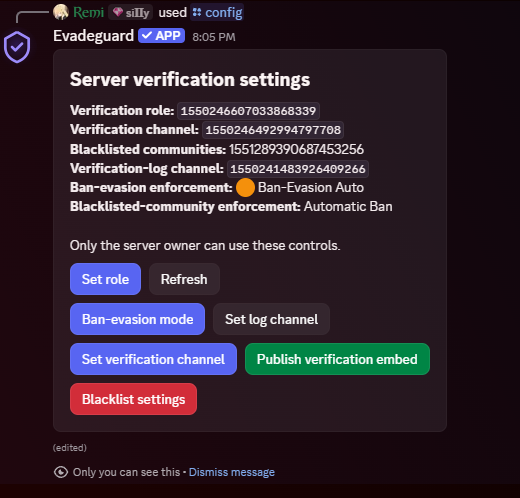
Server configuration
Only the Discord server owner can change EvadeGuard settings. Use /config in Discord or sign in to the web dashboard. Both interfaces use the same settings for your server; changes do not affect other servers.
Web dashboard
Open evadeguard.xyz and choose Dashboard login, or go directly to the dashboard. Sign in with Discord and select a server you own.
The dashboard provides menus for the verified role, verification channel, log channel, and ban-evasion mode. EvadeGuard must be installed in the selected server for its roles and channels to load. Under Blacklisted communities, enter a Discord server ID to add it, or choose Remove beside an existing entry.
If the dashboard displays Dashboard setup required or Discord reports a redirect URL error, dashboard sign-in is temporarily unavailable. Try again later.
The dashboard cannot publish or refresh the verification embed. Use Publish verification embed in /config after choosing the role and verification channel.
Settings
| Setting | What it does |
|---|---|
| Verification role | The role assigned after a member completes verification. The bot needs Manage Roles, and its highest role must be above the role it assigns. |
| Verification channel | The text channel where /config publishes the verification button. The bot needs access to read and send messages there. |
| Verification-log channel | Receives verification and enforcement events. The bot needs access to send messages there. |
| Ban-evasion enforcement | Choose Ban evasion or Strict — No Alts. Both modes automatically ban a member when a qualifying match is found. |
| Blacklisted communities | Server IDs whose membership triggers automatic local enforcement when Discord reports that a verifying account belongs to one. |
| Blacklisted-community enforcement | Currently Automatic Ban. The bot needs Ban Members and a role hierarchy that allows it to ban the member. |
Set roles and channels in Discord
In /config, select Set role and enter the role ID to assign. Select Set verification channel or Set log channel and enter the ID of a text channel the bot can access. Enable Developer Mode in Discord to copy IDs. Confirm the bot has the permissions and role position described above.
Manage blacklisted communities
In /config, open Blacklist settings and choose Add blacklist or Remove blacklist, then enter the community's server ID. In the web dashboard, use the server ID field under Blacklisted communities. A member's reported membership in a listed community causes an automatic ban in your server; it does not ban them from the listed community.
Discord's Ban Members permission is required for automatic bans. See Enforcement modes for the separate effects of ban-evasion detection and blacklist matching.
Privacy and access
The dashboard and /config restrict configuration changes to the server owner. Keep verification and enforcement logs available only to trusted moderators. Review the privacy and data guide and the full privacy policy before requiring members to verify.